

Getting Started with Cozi on the web
The web version of Cozi is full of features designed to simplify your family life. Here’s how to get your shared family calendar set up online.
Using Around Cozi on the Web
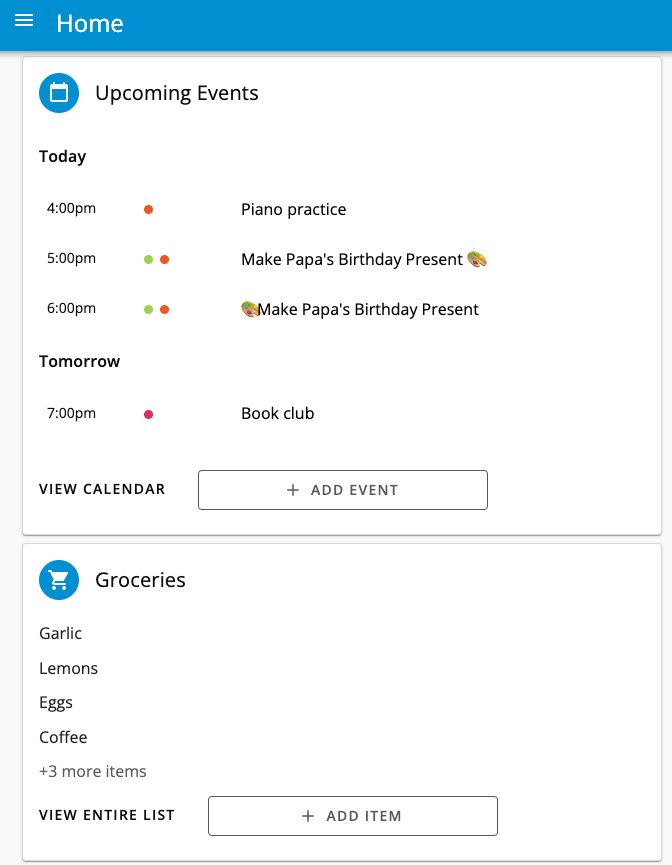
The Cozi homepage brings all your family’s important information together so you can see it at a glance, including Calendar appointments planned for today and tomorrow, items on your Shopping List and To- Do List, and more.
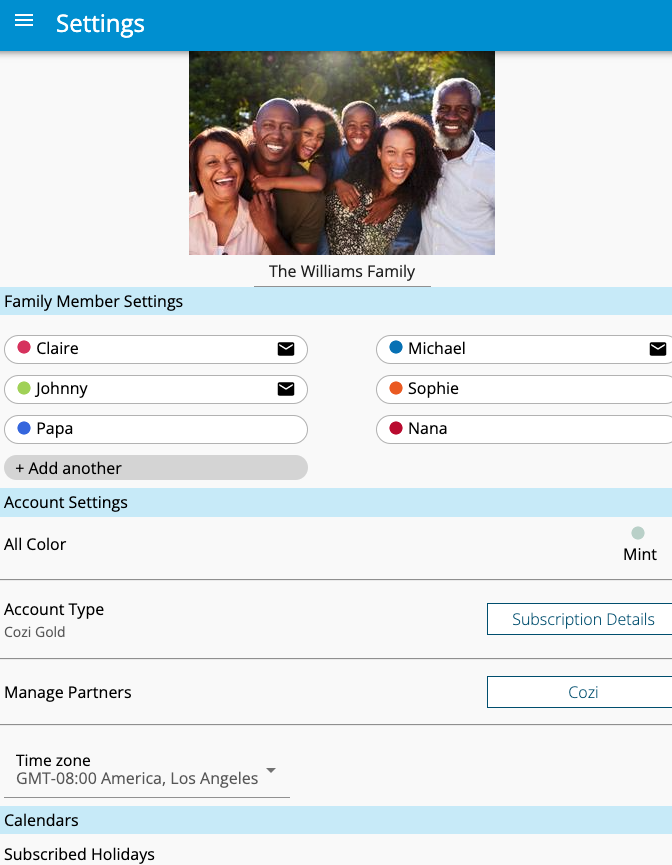
To get back to the home page, tap the three line menu in the upper lefthand corner, and next tap Home. To add or change the family photo, tap on the three line menu in the upper lefthand corner, select Settings, tap on your family photo, and then select a new photo. To change your family photo, Cozi must be given access to your photos or camera. For more information on changing your phone settings and enabling notifications, click here.
Adding family members to your Cozi account
To get the most out of the Cozi app, add your family members or anyone else you’d like to include in your account. You must provide the new user with your shared family password to give them access to your family Cozi account.
From the web
In the apps
-
- Click the three line menu in the upper lefthand corner, next tap Settings, and then tap Add another.
- Enter your family members’ email addresses so that they can sign into this account, and so that you can easily communicate with each other via e-mail messages from your account.
- You can also choose to send weekly or daily agenda e-mails to anyone in your account with an e-mail address.
- Tap Save to go back to the main Settings page.
- You can click the other options on the main Settings page to further set up and customize Cozi for your family. When you’re finished adding this information, click Done to save your data and return to the home page.
Please note, members must have a valid email address associated with their name to receive email messages from Cozi.
- Tap the family icon on the far right of the menu bar. Tap on Family settings (located next to your photo).
- Tap the + Add another button
- Enter your family members’ email addresses so that they can sign into this account, and so that you can easily communicate with each other via e-mail messages from your account. You can also choose to send weekly or daily agenda e-mails to anyone in your account with an e-mail address.
- Tap Save to save your changes and go back to the main Settings page.
- You can tap the other options on the main Settings page to further set up and customize Cozi for your family.
- When you’re finished adding this information, tap Done to save your data and return to the home page.
About Cozi Accounts
With Cozi, you need only one account for your family. Each family member will be able to access the same account and same information for your family, regardless of where you are.
Once you create your account, add the names and email addresses for your other family members to your Cozi Settings. Each person will then be able to sign into the account using their own included email addresses and the one shared password for the account.


