

Getting Started with To Do Lists
Let Cozi remember your to dos, so you don’t have to. Your family can add and manage to do list items from any computer or mobile device.
Adding and sorting list items
- To add an item, select a list, type an item, and then press Enter.
- To move items within a list, drag the item you want to move, and drop it where you want it to be displayed. On the web, drag with cursor; in the apps, press the three horizontal lines to the right of the item.
- ON MOBILE: To create categories within a list, type the category header using all capital letters. For example, if you would like to organize your to do list by short-term and long-term tasks, you could add categories like TODAY or THIS WEEK
- ON WEB: To create sections within your list, click on the three vertical dots in the top-right corner of the screen above your list title, and cho0se “Add Section” from the drop-down menu.
Checking items off a list
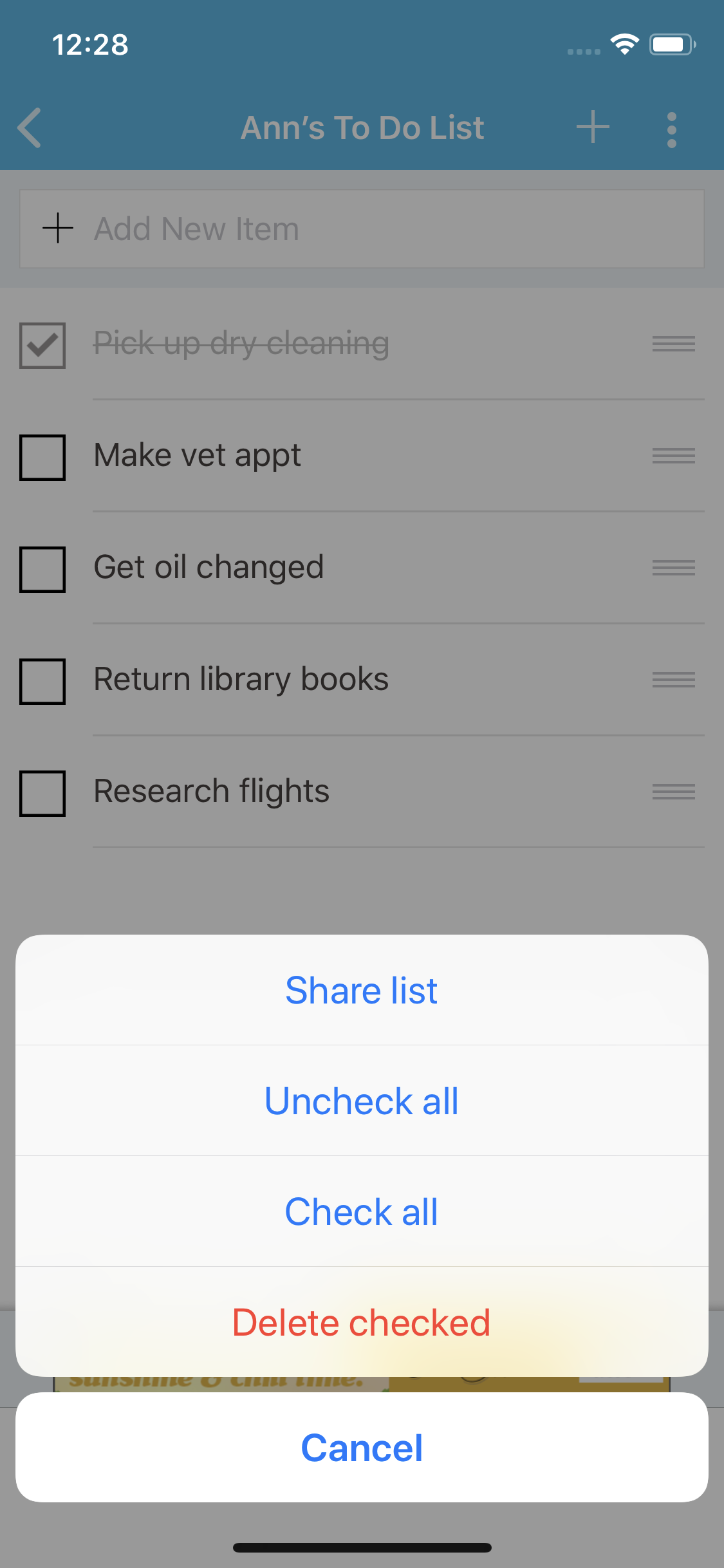
- To check items off a list, click the box to the left of the item. You’ll see a check mark appear next to the item, as well as a line running through the item.
- To remove items from a list on the web, check off the items and use the Remove menu at the top of the page.
- To remove list items in the apps, check off the items and tap the menu (on the top right corner next to the plus sign) and select Delete checked.
NOTE: If you use the Check all Items option, then Delete all, any included headers will also be deleted.
Assigning a to do list
Lists can have a single owner or be listed as “Shared” if they’re being used by multiple people. Please note that assigning a list DOES NOT alert users about their to-do’s; it is only used to color code your lists to aid in organization.
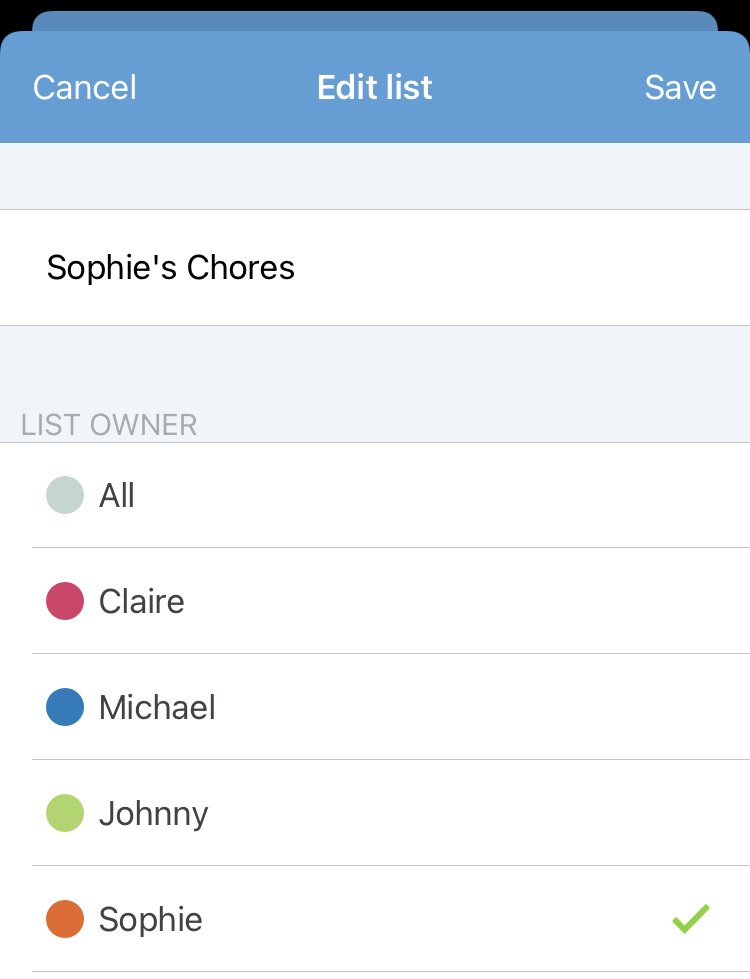
To assign a to do list from the apps
To assign a To Do list:
- On iOS, swipe left, tap Edit, tap the correct list List Owner, and tap Save.
- On Android, scroll to the list you wish to assign, tap on the list menu (three vertical dots in the upper right hand corner), and tap Edit, choose the correct list owner, and tap Save.
Note: Assigning a to do list is not currently available on the mobile web version of Cozi.
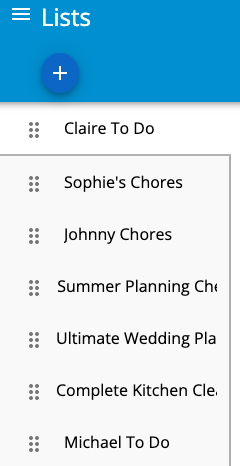
To organize your list of lists from the apps
To change the order lists appear, drag the lists into the order you would like them to appear. The first list will appear on your homepage.
To organize your list of lists from the web
To change the order lists appear, drag the dots next to the name of the list you want to move and organize lists into the order you would like them to appear.
Managing lists
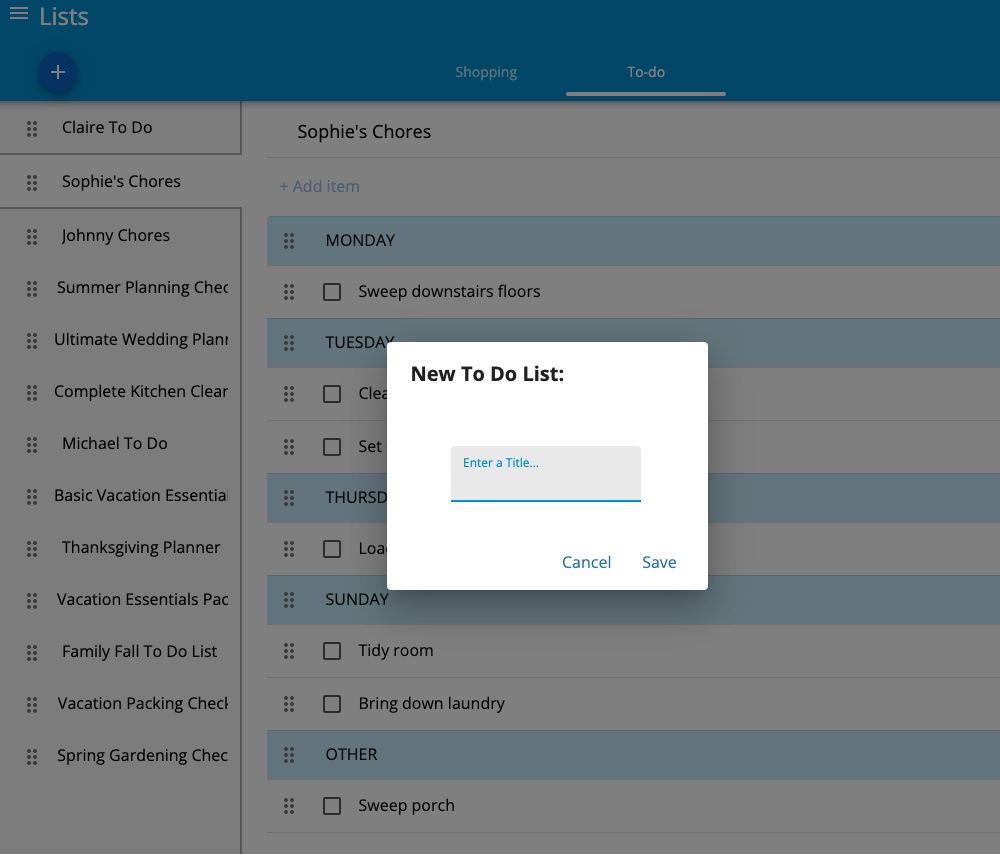
On the web:
- To create a new list, tap the blue “+” icon, name your new list, and then tap Save.
- To rename a list, tap the three dot menu in the upper righthand corner, tap Rename List, and then tap Save.
- To select a different list, click back at the top of the page, then click the name of the list you want to view.
- To change the order lists appear, tap the six-dots to the left of the list name, drag a list and drop it in the desired order. The first list will appear on your homepage.
- To delete an entire list, tap the name of the list, tap the three-dot menu in the upper lefthand corner, tap Delete List, and then tap Delete to confirm delete.
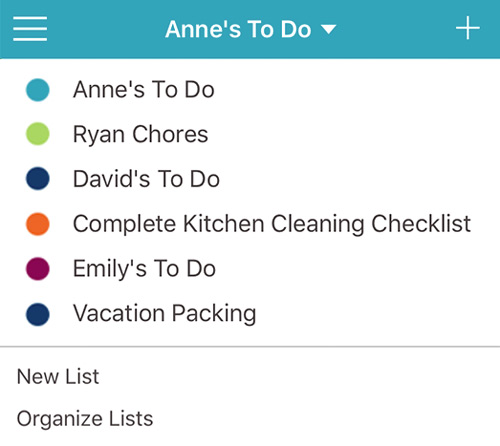
On the mobile apps:
- To create a new list in the To Do section, tap the + on the top right of the screen.
- To rename a list:
- On iOS: Swipe left on the list, tap Edit, and type in a new name.
- On Android: Scroll to the list you wish to change, tap on the list menu (three vertical dots in the upper right hand corner), tap Edit, and type a new name.
- To change the order in which lists appear, drag the list and drop it in the desired order. The first list will appear on your homepage.
- To delete an entire list:
- On iOS, swipe left on the list, and tap Delete.
- On Android, scroll to the list you wish to delete, tap on the list menu (three vertical dots in the upper right hand corner), and tap Delete.


