

Getting Started with Shopping Lists
Cozi lets the family manage shopping lists from any computer or mobile device. Everyone sees the same lists, and you can access any list from your mobile phone when you’re in the store.
Adding and sorting list items
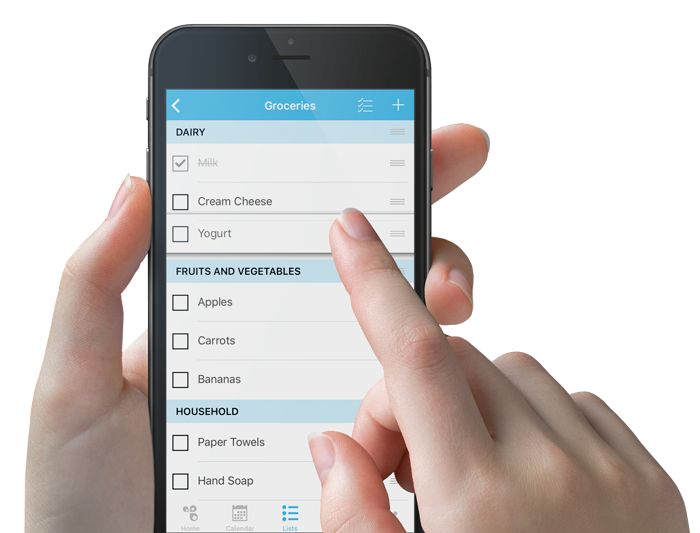
- To add an item, select a list, in the Add New Item field, type an item, and then press Enter .
- To create a category header within a list, type the category header using all capital letters. For example, if you would like to organize your shopping list by type of food, you could add categories like PRODUCE or DAIRY.
- To move items within a list, drag the item you want to move, and drop it where you want it to be displayed. On the web, drag with cursor; in the apps, press the three horizontal lines to the right of the item and drag the item to the new location. In the mobile web, press the six dots to the left of the item and drag the item you want to move, and drop it where you want it to be displayed.
Checking items off a list
- To check items off a list, click the box to the left of the item. You’ll see a check mark appear next to the item, as well as a line running through the item.
- To remove items from a list on the web, check off the items and use the Remove menu at the top of the page.
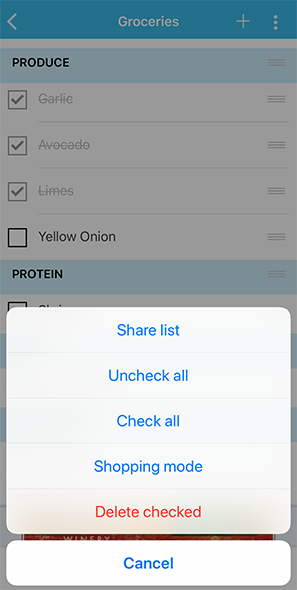
- To remove list items in the apps, check off the items, tap the menu (on the top right corner next to the plus sign) and select Delete checked.
- To keep a master list of frequently purchased items, create a new list specifically for these items, check off items as you shop, and when you’re finished shopping select the option to Uncheck all to add items back to the list.
Managing lists
On the web:
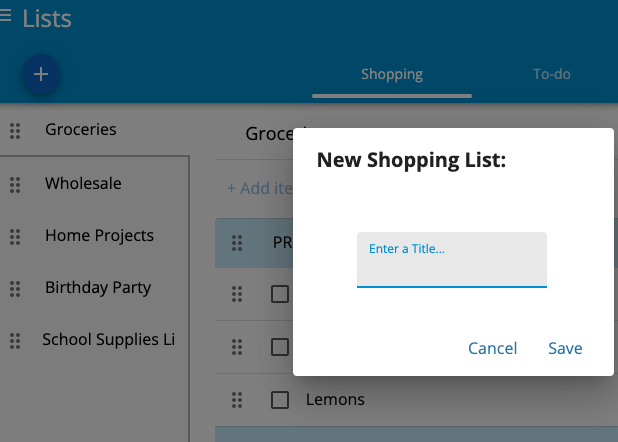
- To create a new list, click on the “+” sign at the top of the Lists page, enter a name for your new list, and then click Save.
- To select a different list, click the name of the list you want to view from the list on the left side of the Lists page.
- To change the order lists appear, drag the dots next to the list you want to move and drop it in the desired order.
- To delete an entire list, select the list you want to delete, click on the three dots on the top right of the Lists page, and then click Delete List.
- To remove items from a list on the web, click on the item you want to delete, and then click on the garbage icon that appears to the right of the item.
On the mobile apps:
- To create a new list, tap the + on the top right of the screen.
- To rename a list:
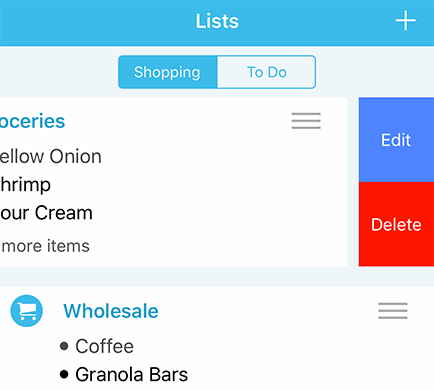
- On iOS, scroll to the list you wish to rename, swipe left and tap Edit, then type the new name of the list and tap Done to save changes.
- On Android, scroll to the list you wish to rename, tap on the list menu (see three vertical dots in the upper right hand corner), tap Edit, type the new name of the list and tap Done to save changes.
- To change the order lists appear, drag the lists into the order you would like them to appear. The first list will appear on your homepage.
- To delete an entire list,
- On iOS, scroll to the list you wish to delete, swipe left and tap Delete.
- On Android, scroll to the list you wish to delete, tap on the list menu (three vertical dots in the upper right hand corner), and tap Delete.
- To remove list items in the apps, check off the items and tap the menu (on the top right corner next to the plus sign) and select Delete checked.


