


Shared Family Calendar
The leading shared digital organizer for families.Get the whole family on the same page.
Manage everyday life and keep the whole family in the loop with the leading shared calendars for families. Cozi organizes everyone’s schedules, activities, and appointments in one place that’s accessible anytime, anywhere.
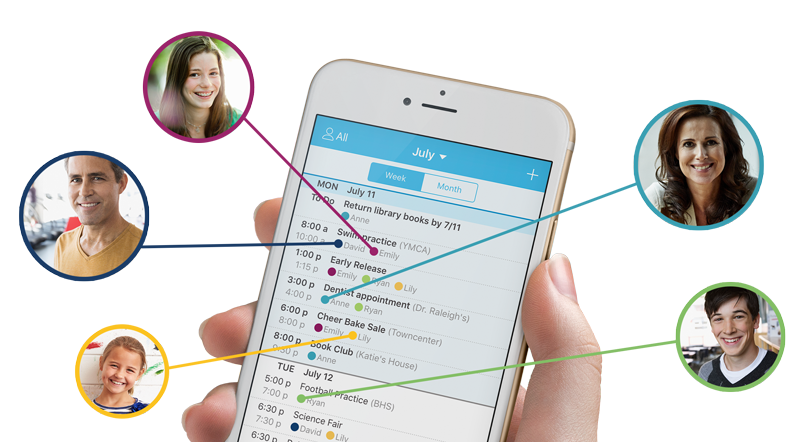
With Cozi Shared Family Calendar, you can…
Coordinate schedules in one secure location
There’s nothing stationary about your life, so why depend on a shared family calendar that hangs on a fridge or wall? Cozi’s color-coded calendar lets you see the whole family at once or filter by individual. Reminders keep everyone on track so no one misses an important appointment or event.
Manage schedules in one location the whole family can see
There’s nothing stationary about your life, so why depend on a shared family calendar that hangs on a fridge or wall? Cozi lets you view shared schedules in a color-coded calendar – from any computer or mobile device.
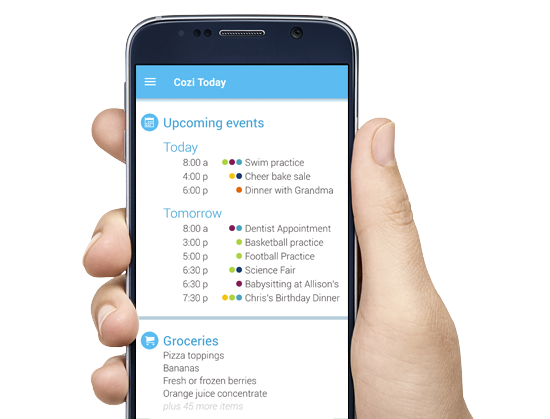
Get your day’s agenda, at a glance
Cozi Today shows you everything you’ve got planned for each day in an easy to digest view that includes upcoming appointments, your current to dos, and recently added shopping list items.
Why families love Cozi
This app has been a lifesaver! We use it for everything—doctors' appointments, birthdays, to do lists for fall and spring cleaning, etc. I don't know how I managed life before it.
I don't even remember life before Cozi. Our motto at home is, ‘If it isn't in Cozi, it's not happening!’
Since using Cozi, we have been able to organize and prioritize ourselves in ways I could only imagine. The only regret I have is that I didn't start using it sooner.
I feel SO much more organized, peaceful, and ‘in control’ when we keep Cozi updated.
Get all this and more with the Cozi, the best shared family calendar app.



Shared Calendar FAQs
What makes Cozi’s family calendar different from a regular calendar?
Cozi’s shared calendar is built for families, offering a color-coded view that shows everyone’s events at once or filtered by person. It’s accessible from any device, lets the whole family collaborate in one secure place, and includes “Cozi Today”—a morning snapshot of daily plans, to-dos, and shopping lists.
How do reminders and agenda emails work in Cozi?
You can set reminders per appointment via push notifications or email. Free users get one reminder per attendee, while Cozi Gold subscribers can set up to three. Agenda emails (daily or weekly) are sent based on your preferences and appear only if your email is enabled in Settings.
Can I sync Cozi Calendar with Google, Outlook, or Apple Calendar?
Yes—Cozi supports read-only sync with Google, Outlook, and Apple Calendar. Once you set up the integration, events from Cozi will appear in your external calendar, making it easy to view everything in one place.
How do I manage multiple schedules and color-code events for each family member?
Cozi lets you add up to 12 members, each with their own name and color. Their events appear in that assigned color in the calendar. You can filter the view to show all family members or just one individual—ideal for organizing everyone’s schedules.