

Getting Started with Calendar
Cozi Calendar makes it easy to manage everyone’s schedules, in one location the whole family can see. Here’s how to set it up.
Entering appointments
On the web
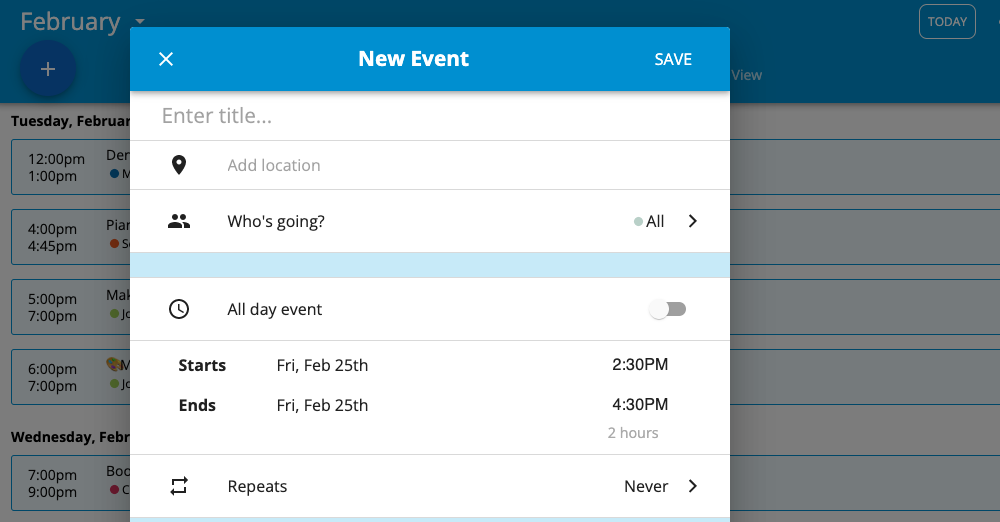
Go to my.cozi.com, click on Calendar, tap the blue plus icon in the bottom right-hand corner. Tap Create an event and enter the relevant appointment information. If you are a Cozi Gold subscriber, you can add an event from the Calendar month-view, tap on the day of the event and add relevant appointment information.
In the app
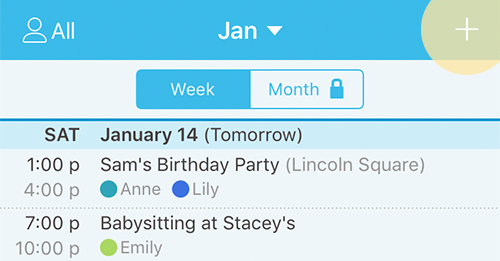
To enter an appointment in Cozi in the mobile apps, go to Calendar, then tap + on the top right corner of the screen.
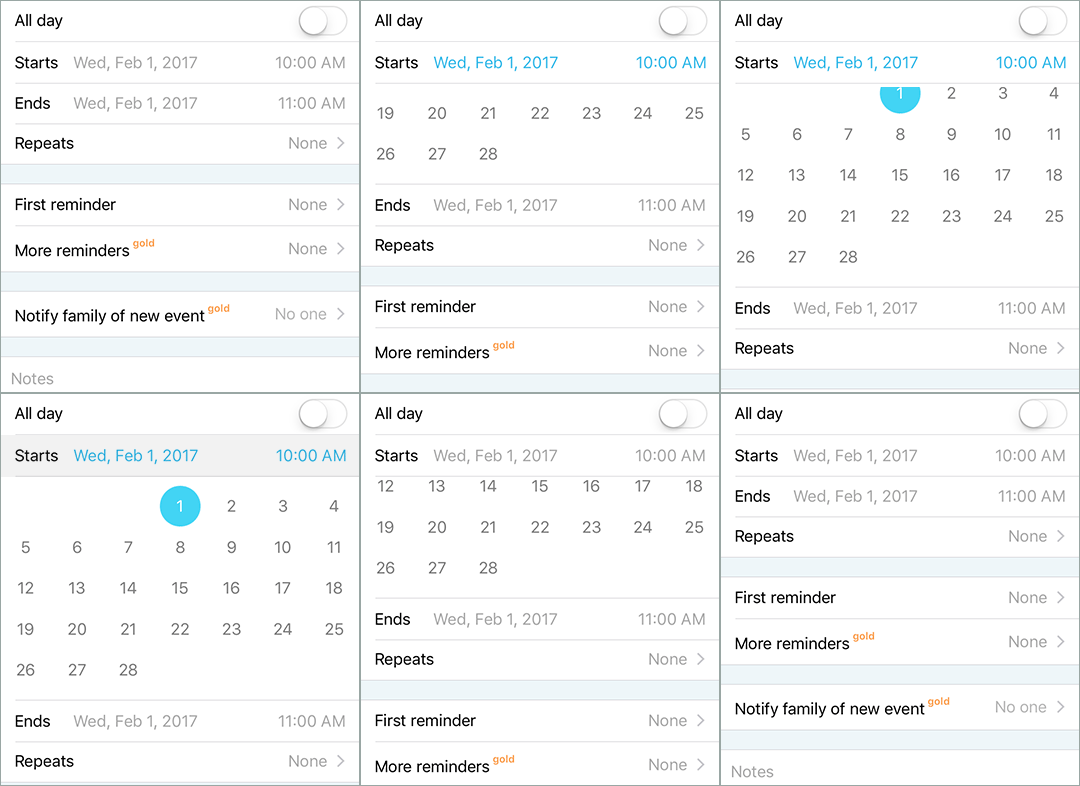
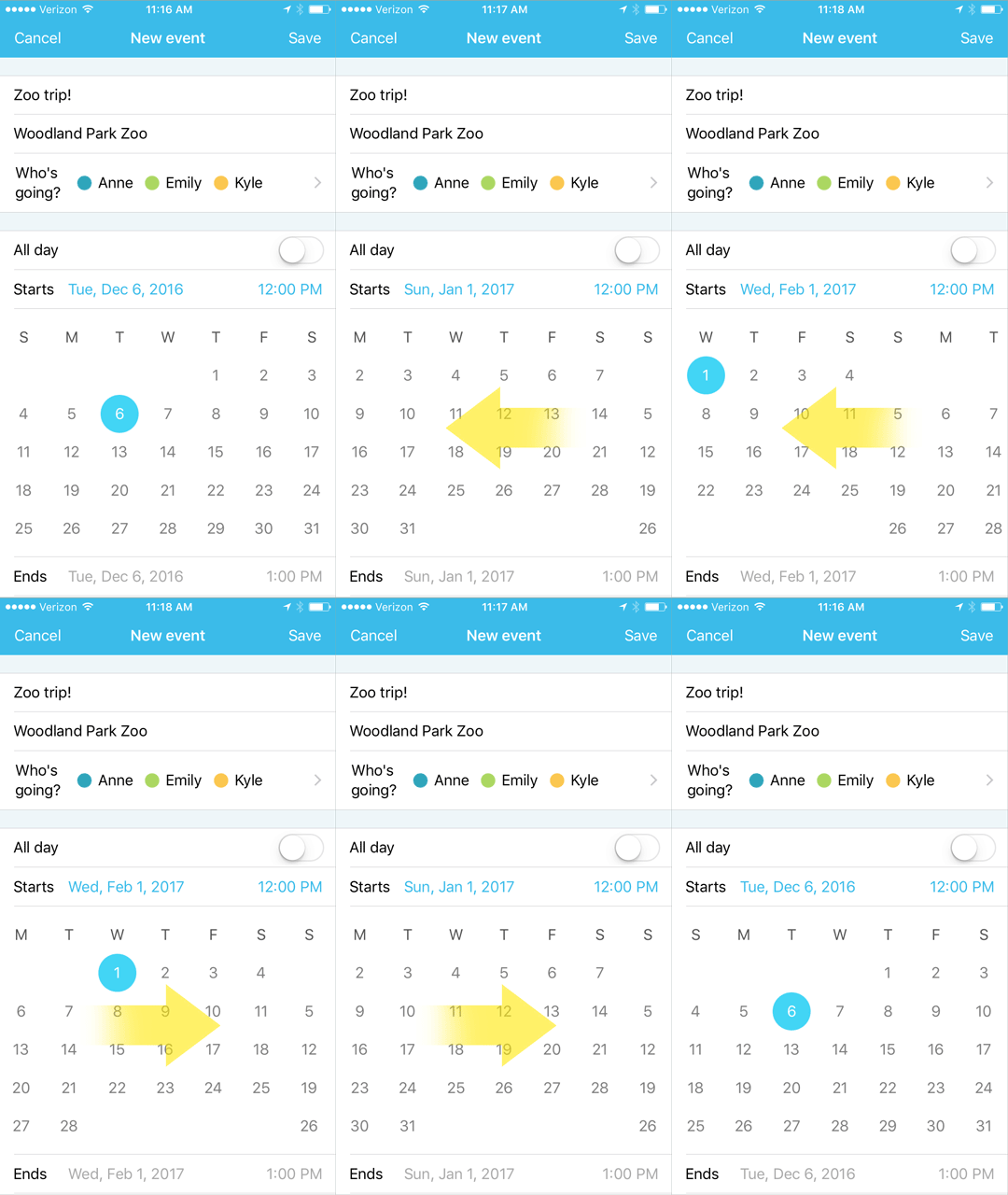
Using the iOS date picker
When you want to add an event that is more than a few days in the future, our day picker makes it easy to navigate through months. Just scroll left to move to future months, and scroll right to move back. To select a date, tap it, and the time picker will open.
Appointment Reminders
You can choose to receive appointment reminders using either of the following methods:
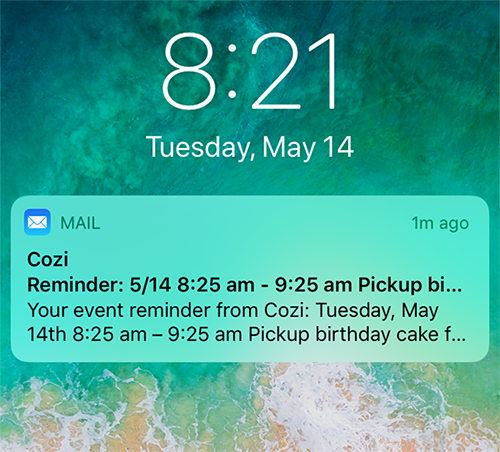
On-device notifications
On-device (push) notifications are available for Cozi mobile app users.
iOS: In your Cozi app, tap the Family icon in the bottom right of the app, tap Family settings, and then tap the name of the person you wish to adjust notifications for. When notifications are enabled, a green check mark will appear next to “on device.”
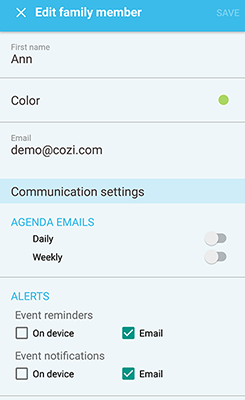
Android: In the Cozi app, tap the menu in the top left corner, tap on Family Settings and then tap on the name of the person you would like to enable notifications for. Look at alerts, ensure “on device” is selected for event reminders and event notifications.
*Notifications must also be enabled for the Cozi app in your phone settings. For more information on enabling notifications please click here.
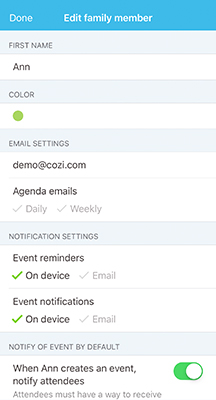
Users must have a valid email address and must have email delivery selected to receive emails from Cozi. Email addresses can be added or edited in Family settings. For information on adding email addresses click here.
iOS: In your Cozi app, tap the Family icon in the bottom right of the app, select Family settings, tap the name of the person you wish to adjust notifications for. When notifications are enabled, a green check mark will appear next to “Email.”
Android: In the Cozi app, tap the menu in the top left corner, tap on Family Settings. Tap on the name of the person you would like to enable notifications for. Look at alerts, ensure “Email” is selected for event reminders and event notifications.
Note: If you’re not receiving email from Cozi, check your junk mail folder. If communications from Cozi are going to junk, you must add Cozi as an authorized sender.
If you’re having trouble setting up reminders please contact us.
Change color coding
Color coding appears in the calendar Agenda view, and helps differentiate appointments.
In the apps
On iOS
- Tap the Family icon in the bottom right menu bar.
- Tap on Family settings, and select the person whose color you’d like to change.
- Tap Color and select a new color.
- Tap Save to save changes.
On Android
- Tap on the menu in the top left corner.
- Tap on Family Settings, and select the person whose color you’d like to change.
- Tap Color and select the new color.
- Tap Save to save changes.
On the web
1. Click Settings in the left column.
2. Click Calendar, and then choose a colored dot for each family member.
3. Click Done to save your changes.
On the mobile web
1. Click the three bar menu in the upper left hand corner.
2. Click Settings.
3. Tap on the person whose color you’d like to change.
4. Tap Color and select a new color.
5. Tap Save to save changes.
Note: The color for All can only be changed in the web version of Cozi.
The Mini-Month calendar is available on the mobile apps and from Cozi on the web. Using the Mini-Month calendar is a fast and efficient way to select a date in the future for adding an appointment or viewing data. The Mini-Month calendar also allows you to view the whole month in the free version of Cozi mobile apps.
In the apps
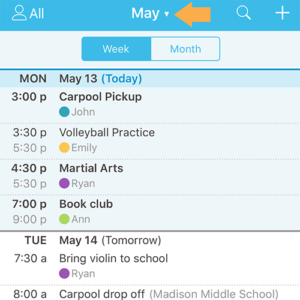
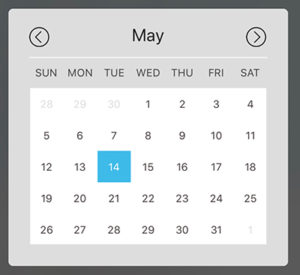
From the Calendar page, tap the name of the month (located at the top of the screen) to activate the Mini-Month calendar. The Mini-Month calendar will pop up, tap on any date to view or add future data.
Note: Mini-Month calendar is not available on the mobile web version of Cozi.
Adding iCals from mobile apps
You can subscribe to internet calendar feeds such as school calendars, kids’ sports schedules, and professional sports team schedules.
On iOS
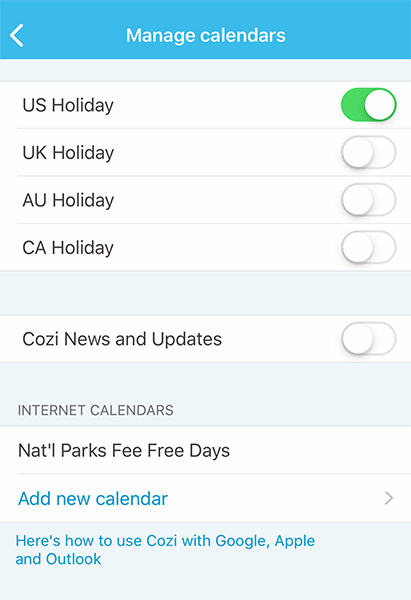
Tap the Family icon in the bottom right of the app, tap Family settings, and then tap Manage calendars. Scroll to Internet Calendars and tap Add new calendar, paste the ICS or iCal URL and tap Save.
On Android
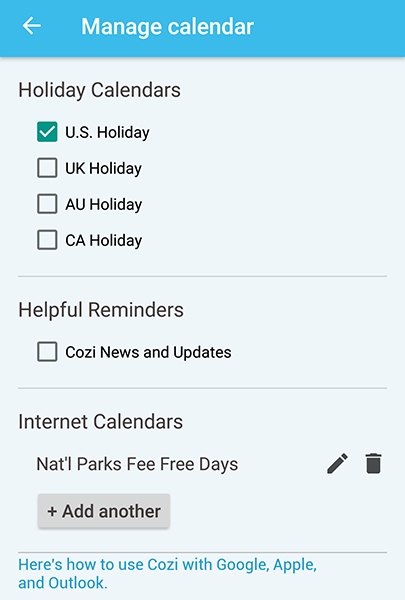
Tap the menu on the top left hand corner (see three horizontal lines), tap Family Settings, and then tap Manage calendars. Under Internet Calendar, tap Add another, paste the ICS or iCal URL and tap Save.
Cozi can be used with other popular calendar programs, such as Google Calendar, Outlook, and Apple Calendar. For information on how to share other internet calendar feeds with Cozi, please click here.


